The best IPTV for Firestick starts with the right stick: not every Fire TV Stick can run an IPTV app, and the model you own decides how easy the setup is. This guide shows which Firestick to use, how to install an IPTV player, how to add your subscription and what to do when something goes wrong.

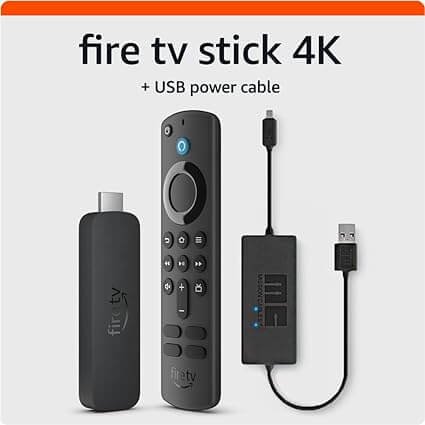
Amazon now sells two kinds of Fire TV Stick. Older models run Fire OS, which is based on Android and can install apps from outside the Amazon Appstore. Newer models, starting with the Fire TV Stick 4K Select released in October 2025, run Vega OS and only allow apps from the Amazon Appstore. On those sticks you cannot sideload an IPTV player.
| System | Models (check the product page before buying) | Install apps from outside the Appstore |
|---|---|---|
| Fire OS | Fire TV Stick 4K Max, Fire TV Stick 4K, Fire TV Cube, first-generation Fire TV Stick HD | Yes |
| Vega OS | Fire TV Stick 4K Select and the newer Fire TV Stick HD | No |
To check a stick you already own, open Settings > My Fire TV > About. A software version that starts with “1.” means Vega OS. Details are on AFTVnews, which tracks which models are affected.
Based on Android
Amazon Appstore only
For the best IPTV for Firestick experience, prepare these four things first.
n
If you do not have a subscription yet, compare options on our IPTV pricing page, or read how to find the best IPTV provider first.
A good player handles your M3U or Xtream details, shows a programme guide and does not crash on a long channel list. IPTV Smarters Pro and TiviMate are two widely used choices, and you can try more than one. Pick the app, then check whether it is listed in the Amazon Appstore for your stick. In practice, the best IPTV for Firestick is a reliable subscription paired with a stable player app.
Search for the app name on the Fire TV home screen, open its page and select Get. This works on every Fire TV Stick.
Only download apps from the developer’s own website, and never install a file from a link you do not trust.
If the best IPTV for Firestick will not install, check that your stick runs Fire OS if you are installing from outside the Appstore, and that Downloader has permission to install unknown apps.
Want to watch rugby on your stick? See our rugby live stream in South Africa guide for official options and a match-day checklist.
Check for spaces at the start or end of the link or code, and confirm the details with your provider.
Test your connection speed, move closer to the router or use a cable, then restart the app. If it keeps happening, contact your provider.
Some apps need an EPG address added in their settings. Ask your provider for it.
The best IPTV for Firestick also works on most Android boxes, using the same steps. No Firestick? For a smart TV, see our guide to IPTV on a Samsung Smart TV, or our guide to STBEmu on a Windows laptop. Ready to choose a service? Browse our IPTV providers and reseller panels.
Yes. You need a Fire TV Stick, an IPTV player app and an IPTV subscription with an M3U link or Xtream login. Older Fire OS sticks can also install apps from outside the Amazon Appstore.
Sticks that run Fire OS, such as the Fire TV Stick 4K Max, are the most flexible because they allow apps from outside the Amazon Appstore. Check the product page before buying, since newer models run Vega OS.
No. The Fire TV Stick 4K Select runs Vega OS and only allows apps from the Amazon Appstore, so you can only use a player app that is listed there.
A VPN is not required to use IPTV. Some people use one for privacy. Vega OS sticks may not support every VPN app, so check before you rely on one.
Common causes are weak Wi-Fi, a slow DNS, an overloaded network or a full app cache. Move closer to the router or use a cable, restart the stick and try a different DNS.